
Is Your Laptop Slowing Down? How to Diagnose Performance & When to Upgrade
Published on February 5, 2026
For any laptop owner, the biggest challenge isn’t just knowing your computer is slow—it’s figuring out why it’s slow and what to fix. Is it a failing battery, a weak charger, or simply not enough memory (RAM)? Before you consider an expensive replacement, a quick diagnosis can help you identify the right fix.
This guide from RamdevIT World will help you check your laptop’s performance and decide whether you need a new battery, charger, memory, or another upgrade to restore its speed and reliability.
Understanding Your Laptop’s Core Components
Think of your laptop like an economy with different sectors, each vital for overall performance. Just as certain economic sectors boom or slow down, your laptop’s components can become bottlenecks.
The main “sectors” of your laptop that affect performance are:
- Memory (RAM): Your laptop’s short-term workspace. Insufficient RAM is a top cause of slowdowns when multitasking.
- Storage (HDD/SSD): Your long-term filing cabinet. A full or old hard disk can make everything feel sluggish.
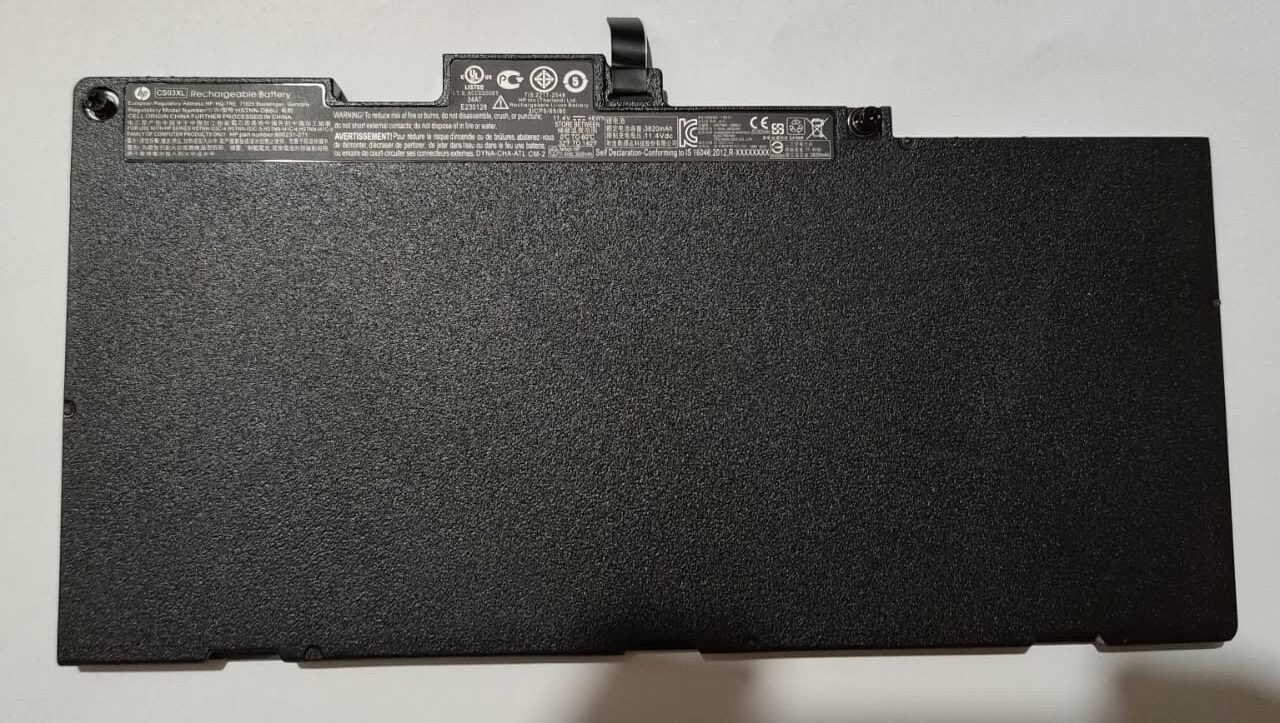
- Battery & Charger (Power System): The energy sector. A weak battery or faulty charger can cause unexpected shutdowns and poor performance.
- Processor (CPU): The central brain. While not as easily upgraded, its health is crucial.
How to Diagnose Performance Problems: A Step-by-Step Check
Operating on a simple philosophy, you can use built-in tools to assess which component is showing weak indicators.
Step 1: Check for Memory (RAM) and Storage Issues
Selection: Open your Task Manager (Ctrl+Shift+Esc on Windows, Activity Monitor on Mac).
Allocation: Look at the “Performance” tab. Is your Memory consistently near 100% usage? Are your applications slow to respond when you have multiple browser tabs or programs open? This is a clear sign you need a RAM upgrade.
Next, check your Disk usage. Is your primary drive (usually C:) almost full? A drive with less than 10-15% free space can severely impact speed. Consider upgrading to a larger or faster Solid State Drive (SSD).
Step 2: Diagnose Battery and Charger Problems
Is it the Battery? Common signs include:
- The laptop dies immediately when unplugged.
- The battery percentage jumps erratically (e.g., from 40% to 10%).
- It won’t hold a charge for a fraction of its original time.
Windows and macOS have built-in battery health reports that can confirm degradation.
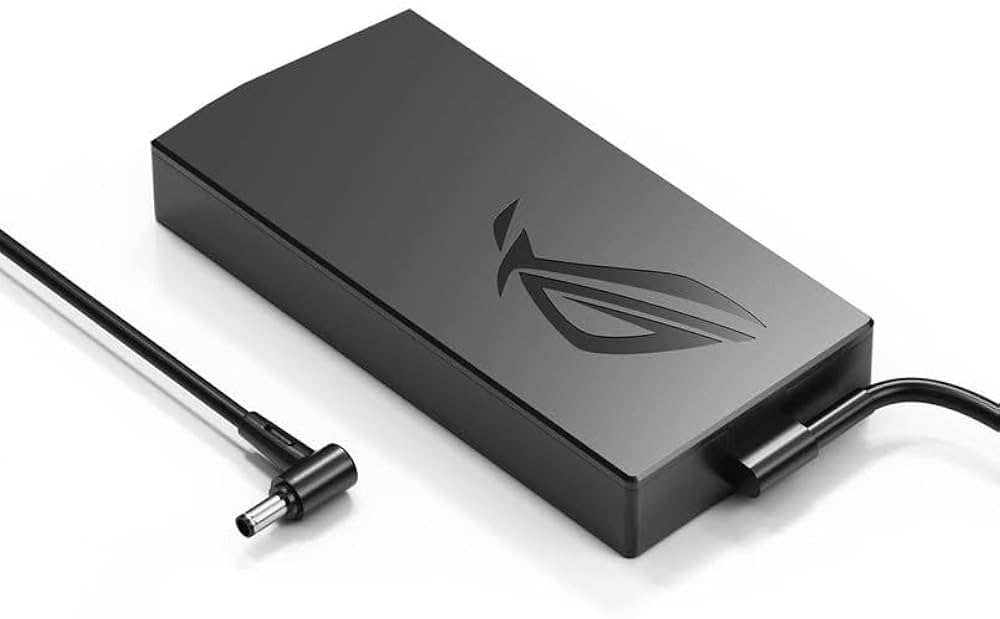
Is it the Charger? Watch for these 7 signs:
- The laptop only charges at a specific angle.
- The charger brick or cable feels unusually hot.
- The laptop doesn’t recognize it’s plugged in.
- Charging is intermittent.
- You see physical wire damage or fraying.
- The laptop drains battery even while plugged in.
- Performance is sluggish when only on battery power.
A failing power system forces your laptop into “power-saving mode,” throttling performance to conserve energy.
Step 3: Evaluate the Need for an Upgrade Cycle
Just as a smart investment strategy rotates based on conditions, your upgrade path should follow the most impactful “performance cycle.”
- Early Recovery (The First Speed Boost): When a laptop first starts to lag, the most effective and affordable upgrade is often adding more RAM. This instantly improves multitasking.
- Full Expansion (Peak Performance): To achieve maximum speed, upgrade your storage to an SSD. This makes boot-ups, file transfers, and loading times dramatically faster.
- Targeted Defense (Addressing Failures): When you experience power issues—short battery life or charging problems—rotate your investment to a new genuine battery or a reliable replacement charger.
- System Rejuvenation (The Complete Refresh): For an old laptop, combining these upgrades (RAM + SSD + New Battery) can effectively extend its lifespan for years, avoiding the cost of a new machine.
Why Targeted Upgrades are a Smart Choice
For most users, buying a new laptop is the default solution. However, strategic upgrades offer clear benefits:
- Cost Efficiency: A RAM or SSD upgrade costs a fraction of a new laptop and can deliver similar performance gains for your daily tasks.
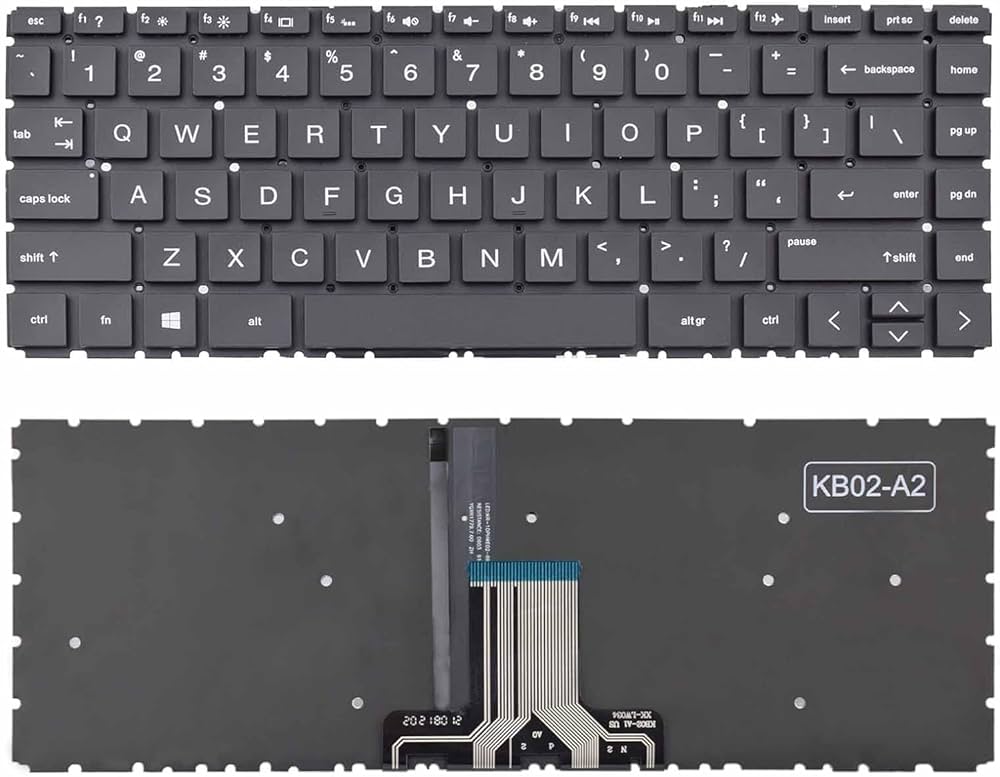
- Expert Support: You don’t need to be a tech wizard. At RamdevIT World, we provide complete DIY guides with video tutorials for batteries, keyboards, and chargers, and we supply compatible, reliable parts.
- Sustainability & Familiarity: Extending your current laptop’s life is eco-friendly. You also keep your familiar setup, files, and preferences.
- Immediate Results: The performance improvement from an upgrade is instant and noticeable.
Conclusion: Boost Performance, Extend Lifespan
A slow laptop doesn’t mean it’s time for a replacement. By diagnosing the symptoms—whether it’s a memory crunch, a full hard drive, or a dying battery—you can make a targeted, cost-effective upgrade that restores performance.
Your laptop’s needs change over time. Your support for it should be dynamic, too.
Ready to diagnose and upgrade? Explore our extensive range of compatible laptop batteries, memory (RAM), SSD storage, and chargers at RamdevIT World. Use coupon FREESHIP for free shipping on your order.